Device Types
How to choose your canvas and translate designs between App and Web.
When you start a project, Stitch asks you to make a choice: App or Web.
This isn’t just about screen size; it is about defining your Primary Design Surface. The device type dictates how Stitch interprets layout, navigation, and hierarchy.
Layouts rely on context
- App Mode: Optimizes for vertical scrolling, bottom-aligned navigation (thumb zones), and stacked content.
- Web Mode: Optimizes for horizontal sprawl, top-aligned navigation, and multi-column grids.
A sceen designed in App Mode will look like a large app when viewed on a desktop. Conversely, a Web Mode design squeezed onto phone screen often loses critical details and UI components expected on native mobile apps.
Designing between modes
The best way to move from one platform to another is not to resize, but to translate.
Stitch
If you have a mobile app design and want a web version, draft a prompt that describes what needs to change to optimize the design for that device type. First, use an existing design as a Reference Image for a new project or an update for a new screen. A new screen can be tricky in the way Stitch currently works but we’ll detail some ways to help smooth that over below.
Phase 1: The App Design
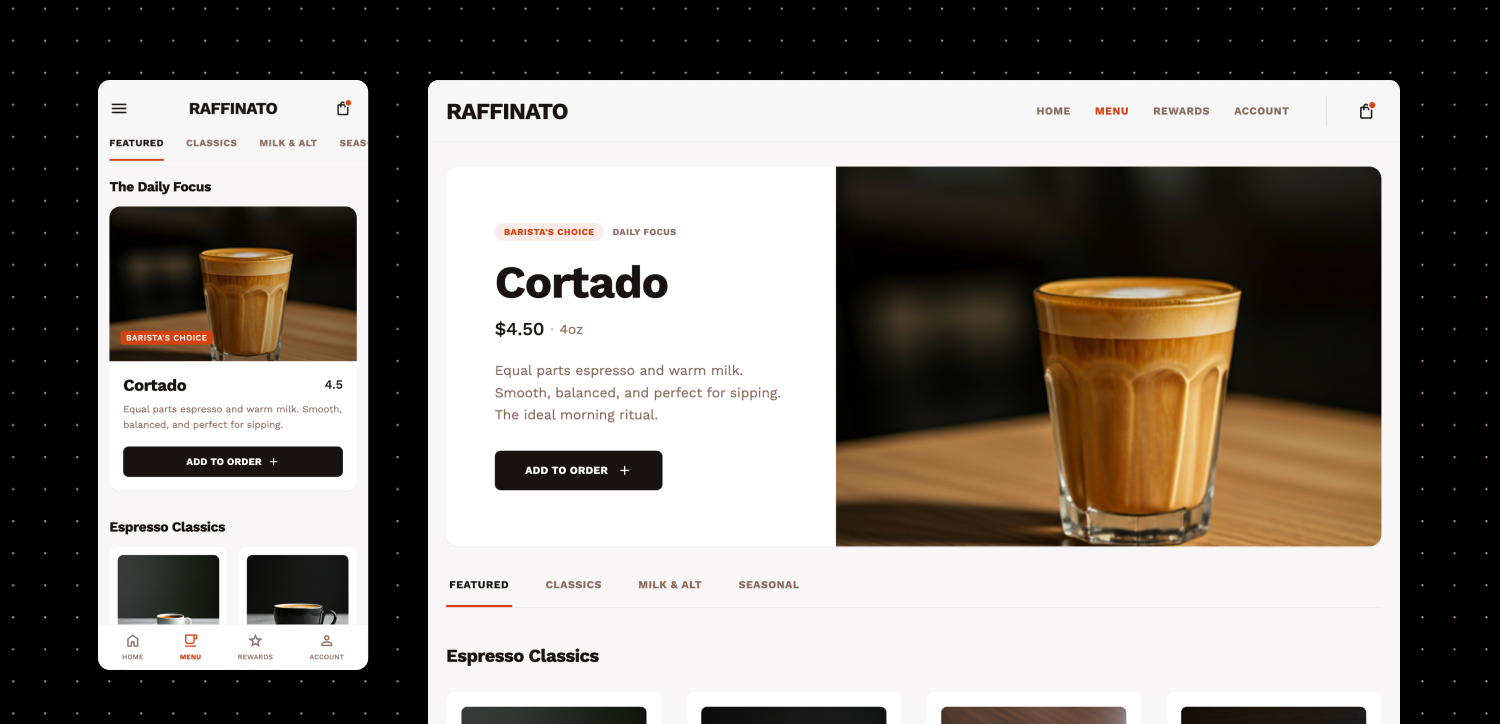
Let’s look at an example for this Raffinato app. Raffinato means refined in Italian. This project started in App Mode because the mobile ordering flow was most important.
This generates a tight, vertical interface perfect for a phone.
Phase 2: Translating to Web
To move to Web, either create a New Project set to Web Mode or provide an update prompt in the existing project, and use a screen’s downloaded image as a reference.
Your goal now is to tell Stitch how to utilize the larger screen real estate. Focus on core UI/UX aspects that need to change, such as the Navigation, the Hero Section, and the Grid Density.
Here is how the prompt handles the device type translation:
By explicitly telling Stitch to move the navigation to the top and split the hero content, the prompt focuses on retaining the feel of the brand and optimizing the design for the utility of the device type.
Switching Device Types in the same project
When you create a Stitch project with a specific device type it will continue to generate screens of that device type’s size. You can give Stitch a prompt to convert to another device type within the same project, but it requires manual finessing.
If you generate a Web prompt inside an App project, Stitch will generate the web content inside an app frame.
- Generate the design.
- Use Preview > Device Type to switch the view to the intended target (e.g., Desktop).
- Resize the frame manually if elements feel cut off.
Pro Tip: The Hidden Content
When switching from App to Web within a project, try increasing the vertical height of the design frame significantly. Stitch often generates the “rest” of the website logic, but hides it because the original App frame was too short. Dragging the frame handle down can reveal the rest of your layout.
Original: https://stitch.withgoogle.com/docs/learn/device-types/
Translated from the official Google Stitch documentation. Original content © Google LLC. This is an independent, unofficial translation.