Iterate with Coding Agents
A subtly opinionated walkthrough for designing and iterating with a coding agent and the Stitch CLI
When you pair a coding agent with the Stitch CLI, your terminal becomes a design studio. The best results don’t come from asking an agent for a generic app template. They come from giving Stitch a real visual anchor, framing the composition cleanly on the first pass, and iterating on live HTML.
Start with artwork to drive the design
If you start from a blank prompt, you risk getting a generic color palette. Give Stitch something real to react to first.
Before prompting Stitch for the UI, generate the artwork that belongs inside your interface. You can generate these in Google AI Studio using Gemini 3 Pro Image (gemini-3-pro-image) with a 1:1 aspect ratio—telling the model to fill the frame edge-to-edge so you get a pure album cover without a border or wall mockup.
Here are the two prompts used for the album covers—Late Sun on the Hudson (warm burnt sienna and ochre) and Cobalt Shadows (twilight cobalt and indigo):
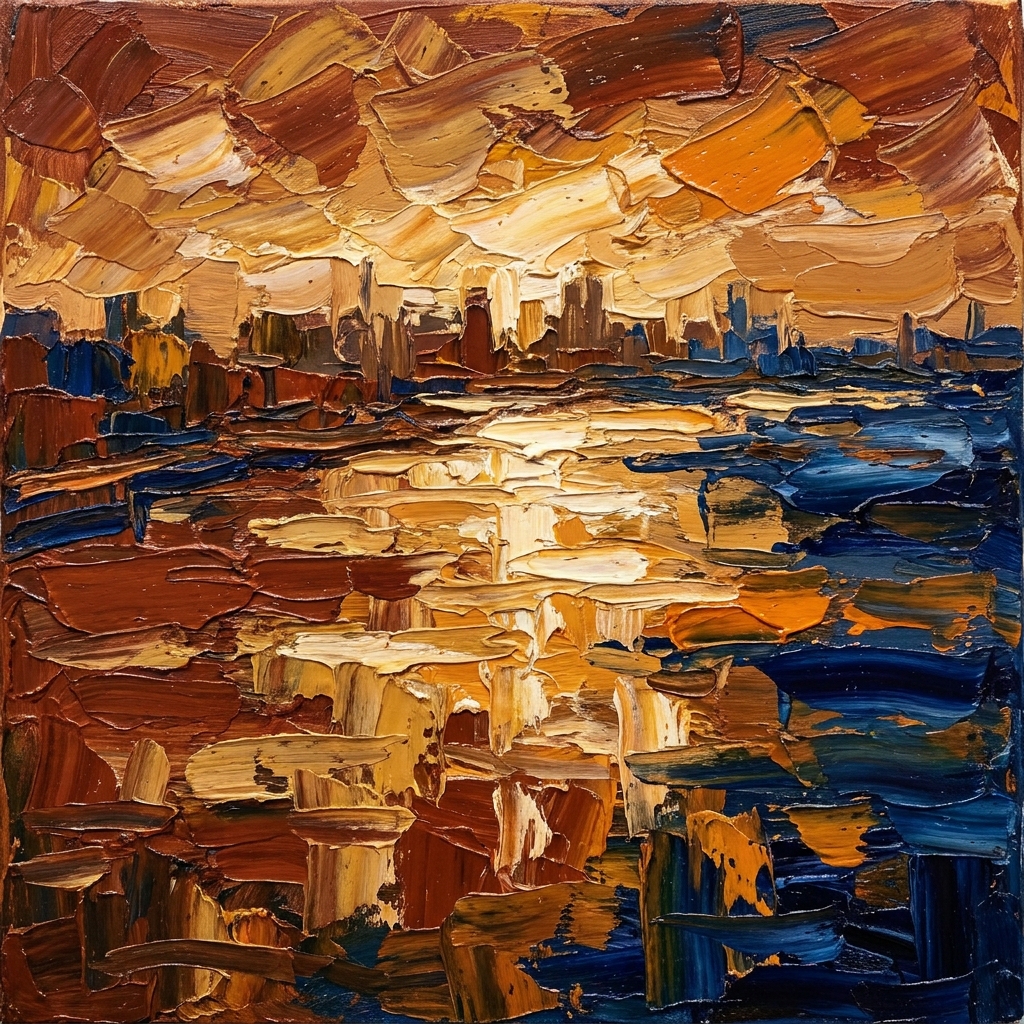
Track 01 — Late Sun on the Hudson
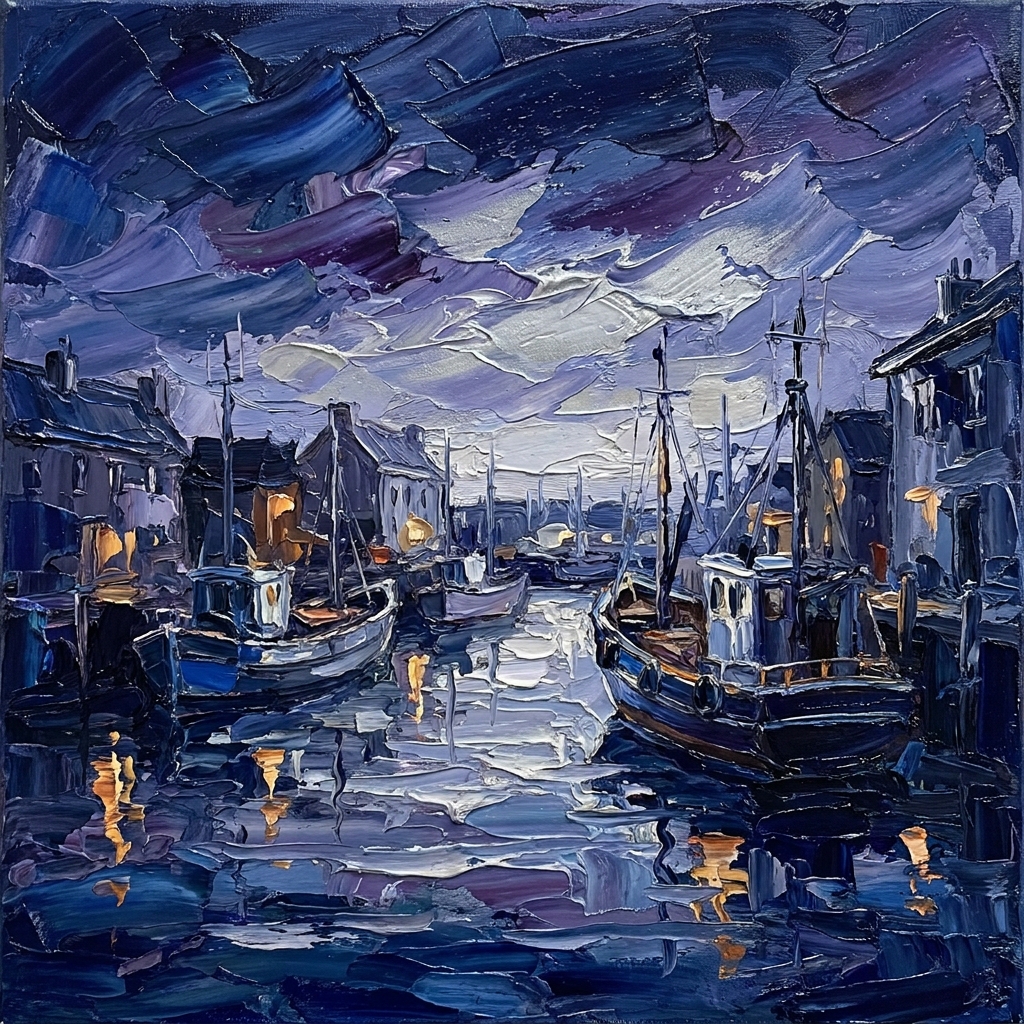
Track 02 — Cobalt Shadows
Save the generated images locally and upload them to your Stitch project with stitch upload screen:
stitch upload screen ./hudson-album-art.png \
  --title "Late Sun on the Hudson"

stitch upload screen ./cobalt-shadows-art.png \
  --title "Cobalt Shadows"
Once your artwork is on the canvas, you can grab its hosted URL with stitch get screen <screen-id> --format json or edit the uploaded screen directly. Passing that hosted URL in your prompt tells Stitch to embed your exact artwork pixel-for-pixel instead of inventing a placeholder.
Frame the design on the first prompt
When you ask for a whole app at once, models love to fill every corner with status dots, pill badges, and fake navigation bars. Tell Stitch what belongs on the canvas and leave everything else out.
A good recipe for a focused, studio-framed shot follows four beats:
Run stitch edit screen against your uploaded artwork screen to build the player around the painting:
stitch edit screen <screen-id> \
  --device DESKTOP \
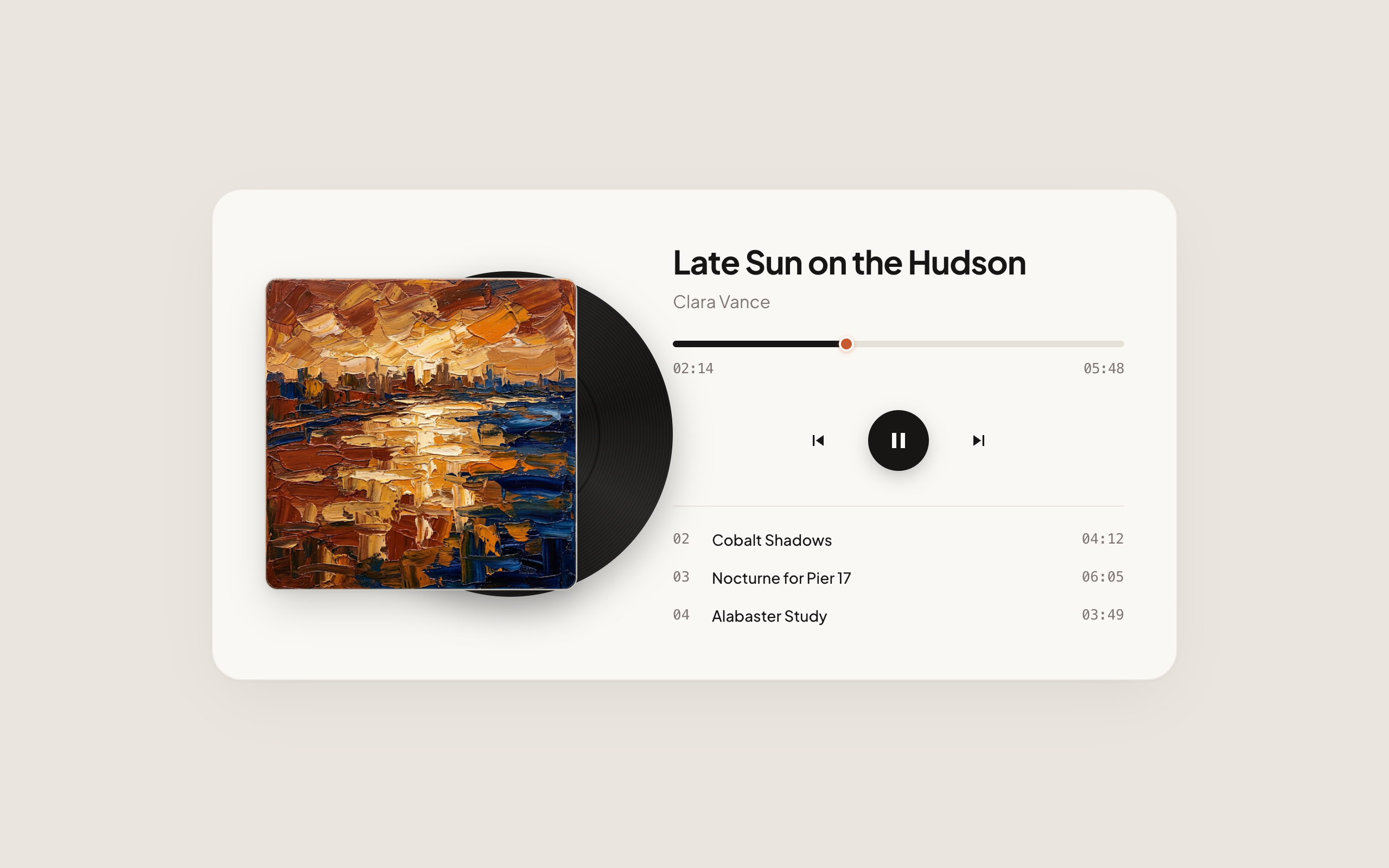
  --prompt "Center a single, sculptural music player card on a completely empty, solid warm stone background (#EAE6DF)..."
Stitch builds the player around your uploaded painting, pulling the warm terracotta accents on the vinyl center label and scrub bar straight from the brushwork:
Stitch
Preview on localhost and make it interactive
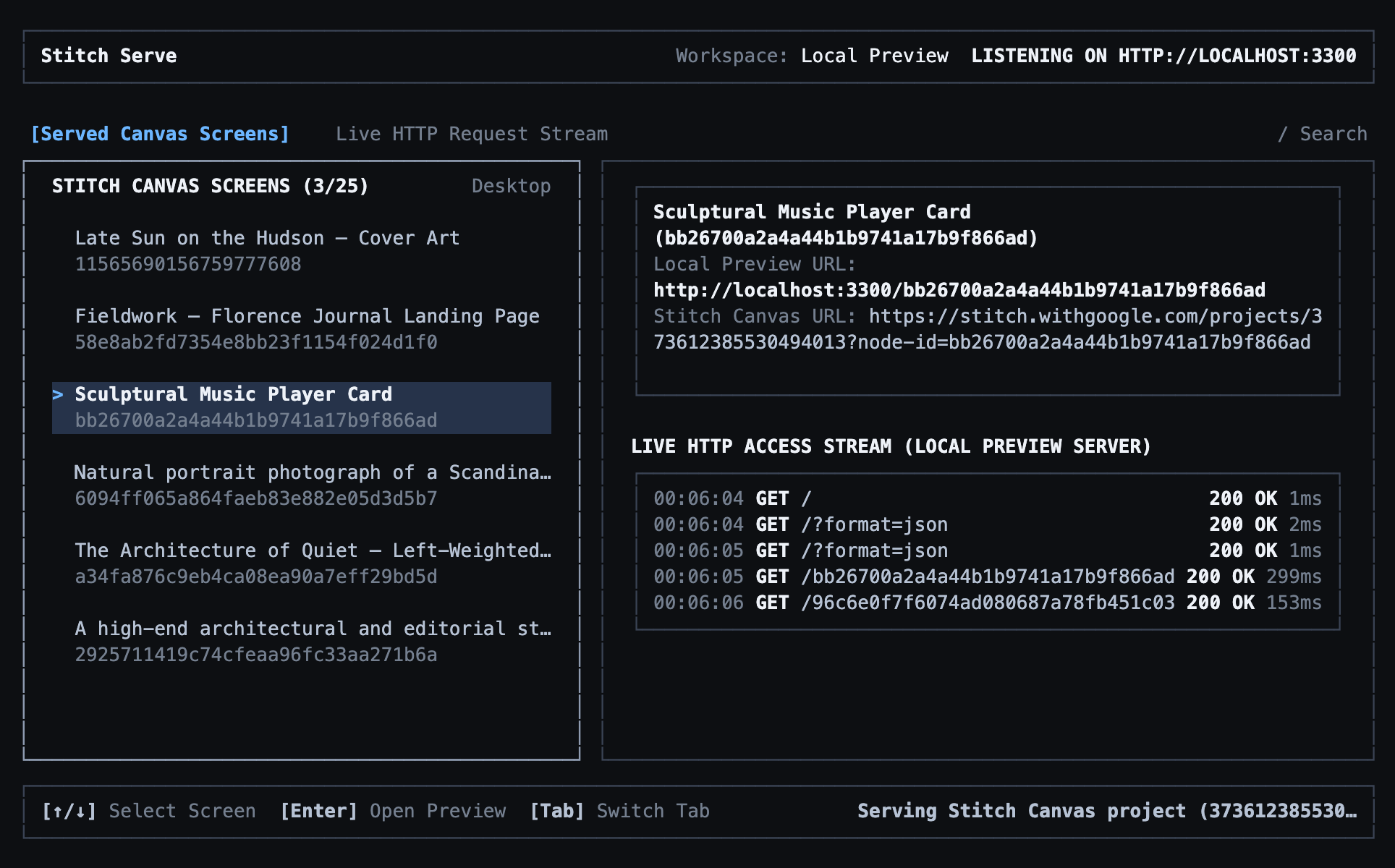
Static screenshots only tell half the story. Run stitch serve to spin up a local preview server so you and your coding agent can inspect the live DOM on localhost:
stitch serve
Stitch
Now pick one change that brings the design to life. Because Stitch outputs real HTML, CSS, and JavaScript, you don’t have to stop at a static layout. Ask Stitch to wire up the tracklist and transport buttons so clicking a track swaps the active song, sleeve painting, and vinyl label color:
stitch edit screen <screen-id> \
  --device DESKTOP \
  --prompt "Make this music player interactive so clicking any track in the tracklist or clicking the previous/next track buttons switches the active track..."
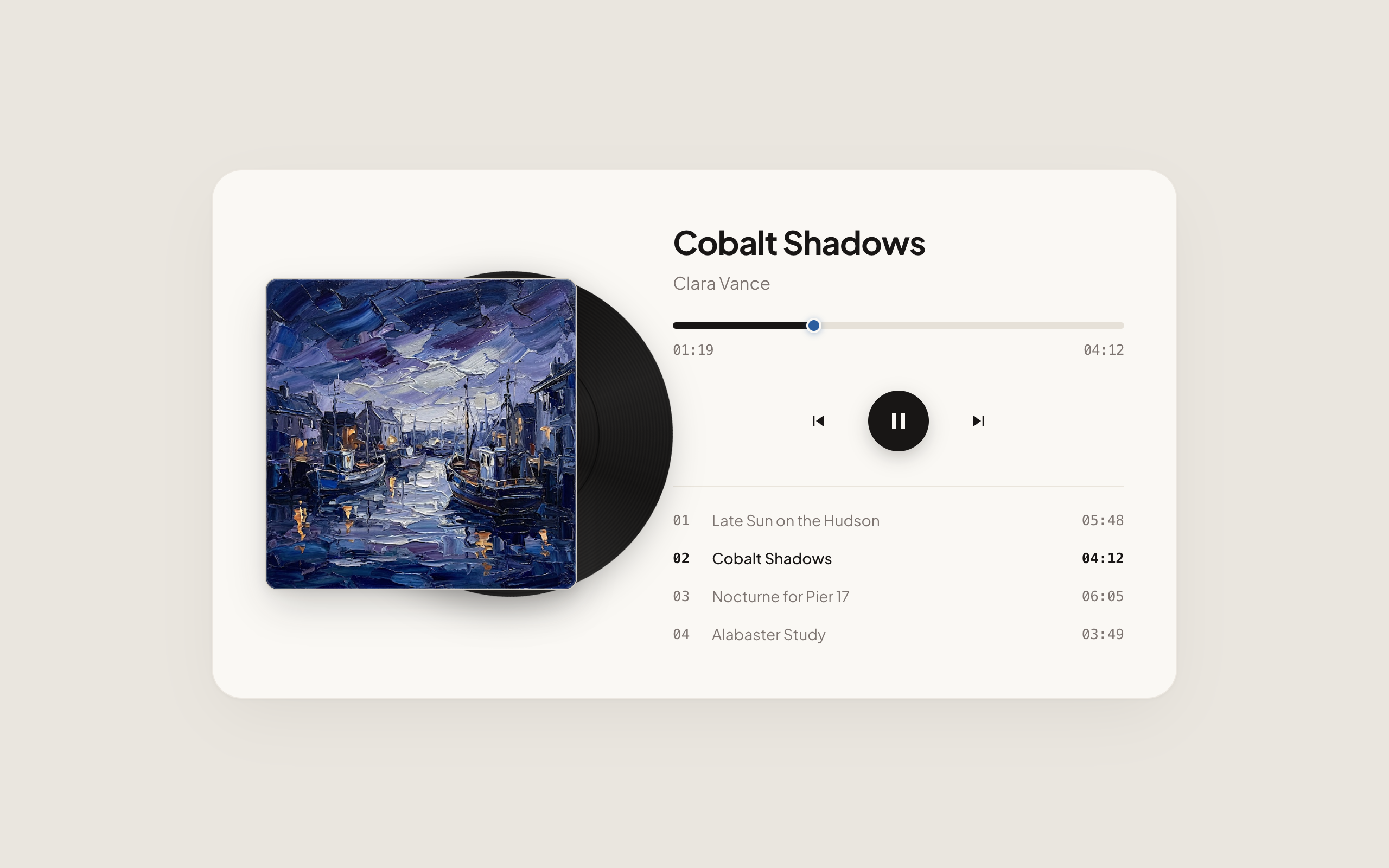
Open the updated screen in your running stitch serve session and click through the queue. Selecting Cobalt Shadows swaps the sleeve to the twilight harbor painting and shifts the vinyl label and playhead from warm terracotta to deep cobalt:
Stitch
Keep iterating
You have the loop: anchor with real assets, frame the screen with clear constraints, and test interactive states on localhost. When the design feels right, pull the HTML into your codebase or keep refining one step at a time.
- Generate & Edit Screens — Explore variants and targeted edits from the CLI.
- Sync Design Systems — Keep your local
DESIGN.mdin sync with your Stitch project. - CLI Command Reference — Full flag reference for
stitch upload screen,stitch edit screen, andstitch serve.
Original: https://stitch.withgoogle.com/docs/cli/agent-bridge/
Translated from the official Google Stitch documentation. Original content © Google LLC. This is an independent, unofficial translation.