MCP 配置指南
通过 Model Context Protocol 把 Stitch 接入你的 AI 智能体
Stitch Model Context Protocol(MCP)服务器让你的 AI 工具(如 Cursor、Antigravity 或 Gemini CLI)直接与你的 Stitch 项目交互。
理解远程 MCP
你使用的大多数 MCP 服务器都是本地的:它们读取你硬盘上的文件,或在你机器上运行脚本。Stitch 是一个远程 MCP 服务器,它运行在云端。
由于它是远程的,因此需要一次安全的“握手”,以确保代表你行动的 AI 智能体确实有权限修改你的设计。
API 密钥 vs OAuth
Stitch MCP 服务器支持两种身份验证方式:
- API 密钥: 在 Stitch 设置页面生成的持久密钥。
- OAuth: 基于浏览器的认证流程,适用于不支持手动输入密钥的特定 AI 客户端,或在禁止将持久密钥存储到磁盘的环境中使用。
何时用哪种
大多数情况下,API 密钥是最简单的方式,也是让你的工具最快连接成功的方式。但在特定场景下,OAuth 值得多花一分钟配置。
| 场景 | 使用 API 密钥,如果…… | 使用 OAuth,如果…… |
|---|---|---|
| 客户端支持 | 你的工具(如 Cursor、Antigravity 或 Gemini CLI)接受在配置文件或环境变量中填写 API 密钥。 | 你的工具(如网页端工具)要求走“登录”流程,不提供手动输入密钥的方式。 |
| 存储策略 | 你在私人机器上,把密钥保存到本地 .json 或 .env 文件是常规做法。 | 你处于“零信任”或临时环境中,禁止或不宜将持久密钥写入硬盘。 |
| 吊销 | 你可以接受手动从 Stitch 设置页面删除密钥,再到本地文件中找到并移除它。 | 你希望能直接“退出登录”,通过 Stitch 设置页面立即让工具失去访问权限,而不用翻找本地文件。 |
| 会话逻辑 | 你希望连接一直保持有效,直到你手动更改。 | 你偏好基于会话的连接,可以在闲置一段时间后过期或需要重新授权。 |
API 密钥配置
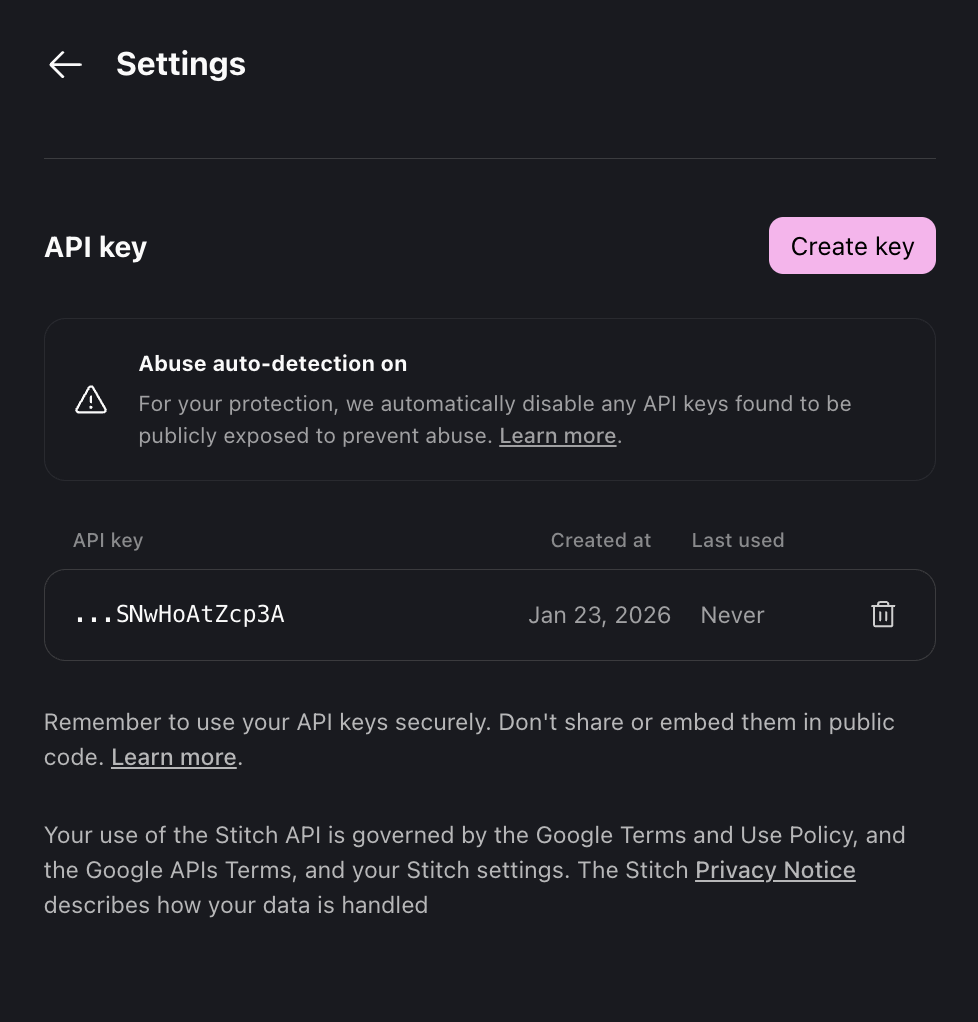
- 打开你的 Stitch 设置页面。
- 滚动到 API Keys 区域。
- 点击“Create API Key”生成新的 API 密钥。
- 复制 API 密钥,并保存到安全的位置。
保管 API 密钥
永远不要把 API 密钥存放在可能被公开暴露的地方。永远不要把 API 密钥提交到公开仓库。不要把 API 密钥写进别人可以查看的客户端代码里。
MCP 客户端配置
Gemini CLI
为 Gemini CLI 安装 Stitch 扩展。
gemini extensions install https://github.com/gemini-cli-extensions/stitch
Cursor
创建 .cursor/mcp.json 文件并加入以下配置:
{
  "mcpServers": {
    "stitch": {
      "url": "https://stitch.googleapis.com/mcp",
      "headers": {
        "X-Goog-Api-Key": "YOUR-API-KEY"
      }
    }
  }
}
Antigravity
在 Agent Panel 中,点击右上角的三个点,选择 MCP Servers,再点击 Manage MCP Servers。选择“View raw config”并加入以下配置:
{
  "mcpServers": {
    "stitch": {
      "serverUrl": "https://stitch.googleapis.com/mcp",
      "headers": {
        "X-Goog-Api-Key": "YOUR-API-KEY"
      }
    }
  }
}
VSCode
打开命令面板(Cmd+Shift+P),输入“MCP: Add Server”,选择“Add MCP Server”。选择 HTTP 添加远程 MCP 服务器。输入 Stitch MCP 地址 https://stitch.googleapis.com/mcp,将名称设为“stitch”并确认。
然后修改 mcp.json 文件,加入 API 密钥:
{
  "servers": {
    "stitch": {
      "url": "https://stitch.googleapis.com/mcp",
      "type": "http",
      "headers": {
        "Accept": "application/json",
        "X-Goog-Api-Key": "YOUR-API-KEY"
      }
    }
  }
}
Claude Code
使用 claude mcp 命令完成认证并加入以下配置:
claude mcp add stitch --transport http https://stitch.googleapis.com/mcp --header "X-Goog-Api-Key: api-key" -s user
OAuth 配置
我们需要生成两个密钥,让你的 MCP 客户端能与 Stitch 通信:
- Project ID: 存放你工作内容的容器。
- Access Token: 用于验证项目身份的短期密钥。
1. 安装 Google Cloud SDK
Stitch 依赖 gcloud CLI 进行安全认证。如果你还没有安装,可以按照这份快速指南全局安装,也可以像下面这样独立安装。
独立安装
# Download and install (simplified for standard environments)
curl https://sdk.cloud.google.com | bash
exec -l $SHELL

# Set local configuration to avoid prompts
export CLOUDSDK_CORE_DISABLE_PROMPTS=1
Homebrew
brew install --cask google-cloud-sdk
2. 双层身份验证
你需要登录两次:一次以你本人(用户)身份,一次以应用(你本地的代码/MCP 客户端)身份。
# 1. User Login (Opens Browser)
gcloud auth login

# 2. Application Default Credentials (ADC) Login
# This allows the MCP server to "impersonate" you securely.
gcloud auth application-default login
3. 配置项目与权限
选择你的工作项目并启用 Stitch API。你还必须为用户授予使用服务的权限。
# Replace [YOUR_PROJECT_ID] with your actual Google Cloud Project ID
PROJECT_ID="[YOUR_PROJECT_ID]"

gcloud config set project "$PROJECT_ID"

# Enable the Stitch API
gcloud beta services mcp enable stitch.googleapis.com --project="$PROJECT_ID"

# Grant Service Usage Consumer role
USER_EMAIL=$(gcloud config get-value account)
gcloud projects add-iam-policy-binding "$PROJECT_ID" \
    --member="user:$USER_EMAIL" \
    --role="roles/serviceusage.serviceUsageConsumer" \
    --condition=None
4. 生成密钥(.env)
最后,生成 Access Token 并保存到 .env 文件。
这会覆盖任何已存在的
.env文件
# Print the token
TOKEN=$(gcloud auth application-default print-access-token)

# Note: This overwrites any existing .env file
echo "GOOGLE_CLOUD_PROJECT=$PROJECT_ID" > .env
echo "STITCH_ACCESS_TOKEN=$TOKEN" >> .env

echo "Secrets generated in .env"
5. 保持密钥新鲜
注意: Access Token 是临时的(通常有效期为 1 小时)。当你的 MCP 客户端停止响应或提示“Unauthenticated”时,你需要:
- 重新运行第 4 步的命令更新
.env文件 - 把
.env中新的STITCH_ACCESS_TOKEN值复制到你的 MCP 客户端配置文件
大多数 MCP 客户端不会自动读取 .env 文件,所以每次令牌过期后,你都需要手动更新配置文件中的令牌。
配置你的 MCP 客户端
把 .env 文件中的值复制到你的 MCP 客户端配置中。用 .env 中的实际值替换下面的占位符:
<YOUR_PROJECT_ID>→.env中GOOGLE_CLOUD_PROJECT的值<YOUR_ACCESS_TOKEN>→.env中STITCH_ACCESS_TOKEN的值
[!IMPORTANT] 访问令牌过期后,你需要每小时手动更新配置文件中的
Authorization请求头。刷新流程见上方第 5 步。
Cursor
创建 .cursor/mcp.json 文件并加入以下配置:
{
  "mcpServers": {
    "stitch": {
      "url": "https://stitch.googleapis.com/mcp",
      "headers": {
        "Authorization": "Bearer <YOUR_ACCESS_TOKEN>",
        "X-Goog-User-Project": "<YOUR_PROJECT_ID>"
      }
    }
  }
}
Antigravity
在 Agent Panel 中,点击右上角的三个点,选择 MCP Servers,再点击 Manage MCP Servers。选择“View raw config”并加入以下配置:
{
  "mcpServers": {
    "stitch": {
      "serverUrl": "https://stitch.googleapis.com/mcp",
      "headers": {
        "Authorization": "Bearer <YOUR_ACCESS_TOKEN>",
        "X-Goog-User-Project": "<YOUR_PROJECT_ID>"
      }
    }
  }
}
VSCode
打开命令面板(Cmd+Shift+P),输入“MCP: Add Server”,选择“Add MCP Server”。选择 HTTP 添加远程 MCP 服务器。输入 Stitch MCP 地址 https://stitch.googleapis.com/mcp,将名称设为“stitch”并确认。
然后修改 mcp.json 文件,加入请求头:
{
  "servers": {
    "stitch": {
      "url": "https://stitch.googleapis.com/mcp",
      "type": "http",
      "headers": {
        "Accept": "application/json",
        "Authorization": "Bearer <YOUR_ACCESS_TOKEN>",
        "X-Goog-User-Project": "<YOUR_PROJECT_ID>"
      }
    }
  }
}
Claude Code
使用 claude mcp 命令添加服务器:
claude mcp add stitch \
  --transport http https://stitch.googleapis.com/mcp \
  --header "Authorization: Bearer <YOUR_ACCESS_TOKEN>" \
  --header "X-Goog-User-Project: <YOUR_PROJECT_ID>" \
  -s user

# -s user: saves to $HOME/.claude.json
# -s project: saves to ./.mcp.json
Gemini CLI
为 Gemini CLI 安装 Stitch 扩展:
gemini extensions install https://github.com/gemini-cli-extensions/stitch
可用工具
完成认证后,你的 AI 助手就能使用以下工具管理 Stitch 工作流。完整的 schema 和细节请参阅参考文档。
项目管理
create_project: Creates a new container for your UI work.- title (string): The display name of the project.
get_project: Retrieves specific details for a single project.- name (string): The resource name of the project.
list_projects: Retrieves a list of all your active designs.- filter (string): Filters by owned or shared projects.
屏幕管理
list_screens: Fetches all screens within a specific project.- projectId (string): The ID of the project to inspect.
get_screen: Retrieves specific details for a single screen.- name (string): The resource name of the screen.
AI 生成
generate_screen_from_text: Creates a new design from a text prompt.- projectId (string): The ID of the project.
- prompt (string): The text prompt to generate a design from.
- modelId (string): The model to use (
GEMINI_3_FLASHorGEMINI_3_1_PRO).
edit_screens: Edits existing screens using a text prompt.- projectId (string): The ID of the project.
- selectedScreenIds (string[]): The screen IDs to edit.
- prompt (string): The edit instruction.
generate_variants: Generates design variants of existing screens.- projectId (string): The ID of the project.
- selectedScreenIds (string[]): The screen IDs to generate variants for.
- prompt (string): Text guiding variant generation.
- variantOptions (object): Variant configuration (count, creative range, aspects).
设计系统
create_design_system: Creates a new design system with foundational design tokens.- designSystem (object): The design system configuration (display name, theme).
- projectId (string): Optional. The project to associate the design system with.
update_design_system: Updates an existing design system.- name (string): The resource name of the design system asset.
- projectId (string): The project ID.
- designSystem (object): The updated design system content.
list_design_systems: Lists all design systems for a project.- projectId (string): Optional. The project ID to list design systems for.
apply_design_system: Applies a design system to one or more screens.- projectId (string): The project ID.
- selectedScreenInstances (array): Screen instances to update (from
get_project). - assetId (string): The design system asset ID (from
list_design_systems).
服务条款
使用本产品即表示你同意以下许可的条款与条件:Google APIs Terms of Service。
原文: https://stitch.withgoogle.com/docs/mcp/setup/
本页翻译自 Google Stitch 官方文档,原文版权归 Google LLC 所有。本站为独立第三方翻译,与 Google 无关联。