裝置類型
如何選擇畫布,並在 App 與 Web 之間轉換設計。
當你開始一個專案時,Stitch 會要求你做一個選擇:App 還是 Web。
這不僅僅關乎螢幕尺寸,更是在定義你的主設計介面(Primary Design Surface)。裝置類型決定了 Stitch 如何理解版面、導覽和階層。
版面取決於情境
- App 模式: 最佳化縱向捲動、底部對齊導覽(拇指操作區)和堆疊內容。
- Web 模式: 最佳化橫向展開、頂部對齊導覽和多欄網格。
在 App 模式下設計的畫面,在桌面端檢視時會像一個放大的應用程式。反過來,把 Web 模式的設計硬塞進手機螢幕,往往會遺失原生行動應用程式應有的關鍵細節和 UI 元件。
在兩種模式之間設計
從一個平台遷移到另一個平台,最好的方式不是縮放尺寸,而是轉譯(translate)。
Stitch
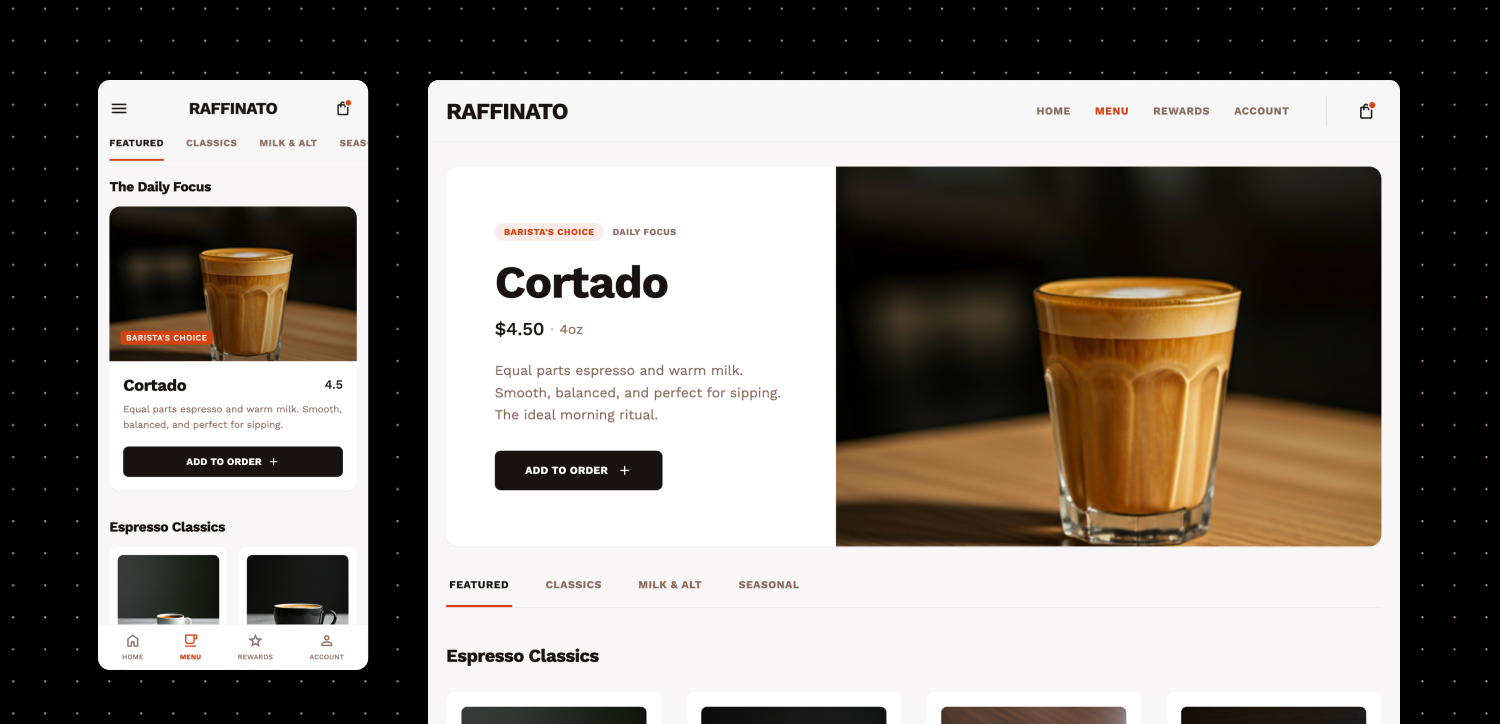
如果你有一個行動應用程式設計,想要一個網頁版,可以起草一條提示詞,描述需要改動哪些地方才能讓設計適應該裝置類型。首先,把現有設計作為新專案的參考圖(Reference Image),或者作為新畫面的更新參考。按 Stitch 目前的機制,產生新畫面可能會有些棘手,下面我們會介紹一些讓它更順暢的方法。
第一階段:App 設計
來看這個 Raffinato 應用程式的例子。Raffinato 在義大利語中意為「精緻」。 這個專案從 App 模式開始,因為行動點單流程最重要。
這會產生一個緊湊的縱向介面,非常適合手機。
第二階段:轉譯為 Web
要遷移到 Web,可以新建一個設為 Web 模式的專案,或在現有專案中給出更新提示詞,並使用某個畫面的下載圖片作為參考。
現在的目標是告訴 Stitch 如何利用更大的螢幕空間。聚焦需要改變的核心 UI/UX 方面,例如導覽、Hero 區域和網格密度。
下面是提示詞如何處理裝置類型轉譯:
透過明確告訴 Stitch 把導覽移到頂部、把 hero 內容拆分,這條提示詞專注於保留品牌的感覺,並針對裝置類型的用途最佳化設計。
在同一專案中切換裝置類型
當你以某個裝置類型建立 Stitch 專案後,它會持續產生該裝置類型尺寸的畫面。你可以在同一專案內用提示詞讓 Stitch 轉換為其他裝置類型,但需要手動微調。
如果在 App 專案裡產生 Web 提示詞,Stitch 會在 App 框架內產生 Web 內容。
- 產生設計。
- 用 Preview > Device Type 把檢視切換到目標裝置(例如 Desktop)。
- 如果元素感覺被裁切,手動調整框架大小。
專業技巧:隱藏的內容
在專案內從 App 切換到 Web 時,試著把設計框架的縱向高度大幅拉高。Stitch 往往產生了網站邏輯的「其餘部分」,但因為原來的 App 框架太短而隱藏了。向下拖曳框架手柄就能露出版面的其餘部分。
原文: https://stitch.withgoogle.com/docs/learn/device-types/
本頁翻譯自 Google Stitch 官方文件,原文版權歸 Google LLC 所有。本站為獨立第三方翻譯,與 Google 無關聯。